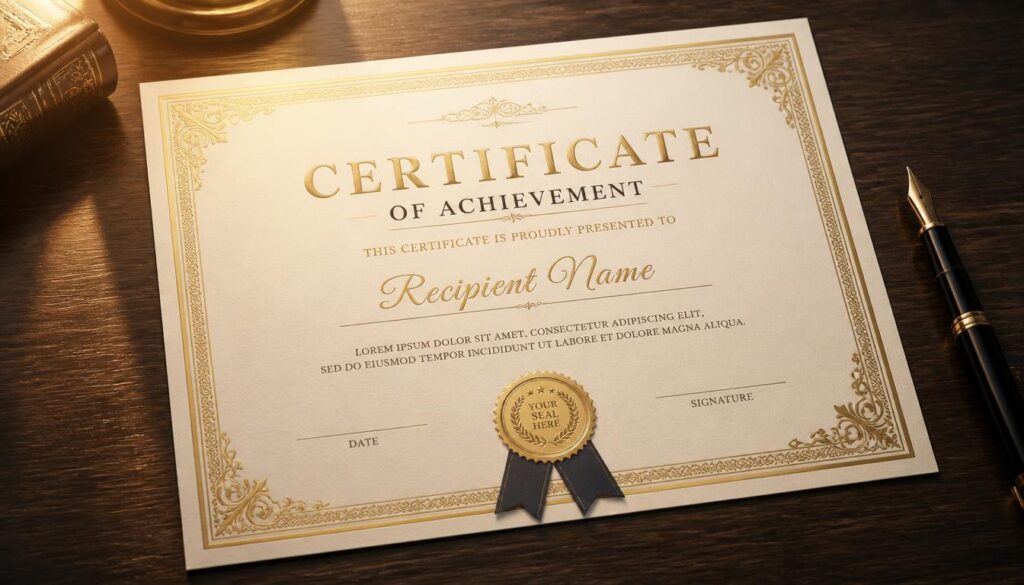
Free Certificate Maker:
Recognition matters. A well‑designed certificate makes an employee feel valued, gives course graduates something to share on LinkedIn, and makes your brand look professional. You don’t need a designer. A free certificate maker lets you create polished certificates in minutes. This guide covers how to create them, the best use cases for businesses and trainers, and six design tips that make certificates look premium.
What Can You Create?
- Course completion certificates for online courses and workshops,
- Employee of the month and recognition awards,
- Training and compliance certificates,
- Event participation certificates for webinars and conferences,
- Gift certificates for services,
- Appreciation certificates for volunteers, partners and clients.
How to Make a Certificate (4 Steps)
- Open the tool: Design a certificate with our free certificate maker.
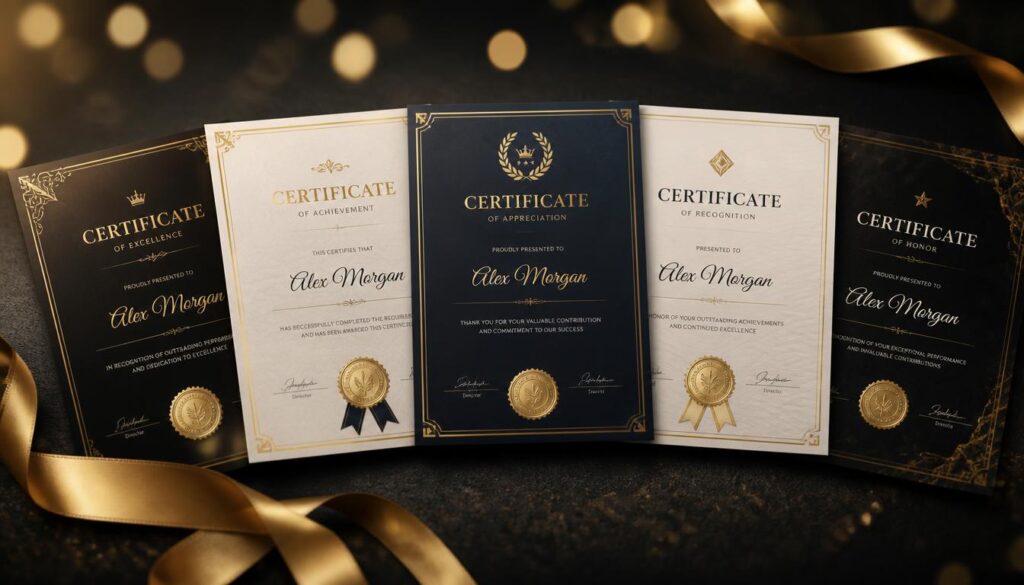
- Pick a template that matches the occasion: formal, modern or playful.
- Customise the text: recipient name, achievement, date, issuer and signature.
- Download as an image or PDF and print or email it.
Add a signature image from our online signature maker for an authentic finish.
6 Pro Tips for Stunning Certificates
1. Keep the hierarchy clear
The recipient’s name should be the largest text, followed by the achievement. Everything else is secondary.
2. Use no more than two fonts
A classic serif for names and a clean sans‑serif for details looks professional.
3. Match your brand colours
Use your brand colours for borders and accents so certificates feel official. Our color palette generator can help.
4. Leave white space
Crowded certificates look cheap. Generous margins look premium.
5. Add verification details
For courses and training, include a certificate ID and issue date so employers can verify them.
6. Export in high quality
Use PDF for printing and PNG for sharing online.
Certificates for Online Course Creators
If you sell courses, certificates boost completion rates and word‑of‑mouth. Graduates often share them on LinkedIn, giving your course free exposure. Include your logo, course title, hours of study and a unique ID.
Certificates for Employers
Recognition programmes help retention. A printed certificate at a team meeting, or a digital one shared in Slack, costs almost nothing and shows appreciation. Combine it with a small reward for maximum impact.
Printing Tips
- Paper: heavier card stock looks and feels premium.
- Size: US Letter in the US, A4 in the UK and most other countries.
- Orientation: landscape is traditional for certificates.
- Frames: inexpensive frames turn certificates into keepsakes.
Common Mistakes
- Misspelling the recipient’s name (always double‑check),
- Using low‑resolution logos that look blurry when printed,
- Too many colours and fonts,
- Forgetting the date or issuer’s name.
Related Free Tools
Turn your certificate into a shareable QR link with our QR code generator, or combine several certificates into one file with Merge PDF.
What to Write on a Certificate
A clear structure makes any certificate look official:
- Title: “Certificate of Completion”, “Certificate of Achievement” or “Certificate of Appreciation”.
- Presentation line: “This certificate is proudly presented to”.
- Recipient name in large text.
- Reason: “for successfully completing the Digital Marketing Fundamentals course (12 hours)”.
- Date and location (if relevant).
- Signature and name of the issuer, with job title.
- Certificate ID for verification.
Keep the reason specific. “For outstanding customer service in Q3 2026” means more than “for great work”.
Digital vs Printed Certificates
Digital certificates are instant, free to send and easy to share on social media. Printed certificates feel more meaningful in person and suit ceremonies and office walls. Many businesses do both: they email a PDF and hand over a printed copy at a team event.
Final Thoughts
A free certificate maker gives businesses, trainers and event organisers an easy way to recognise people professionally. Choose a clean template, keep the recipient’s name prominent, add your brand colours and a signature, and export in high quality. Small gestures of recognition have a big impact.
Learn more: Wikipedia: Certificate of attendance, Canva design school, Google Fonts.
FAQ
Is the certificate maker free?
Yes, you can design and download certificates for free.
Can I add my logo?
Yes. Upload your logo and place it on the template.
What size should a certificate be?
US Letter or A4, usually in landscape orientation.
Can I print certificates at home?
Yes. Use heavier paper and high‑quality print settings.